
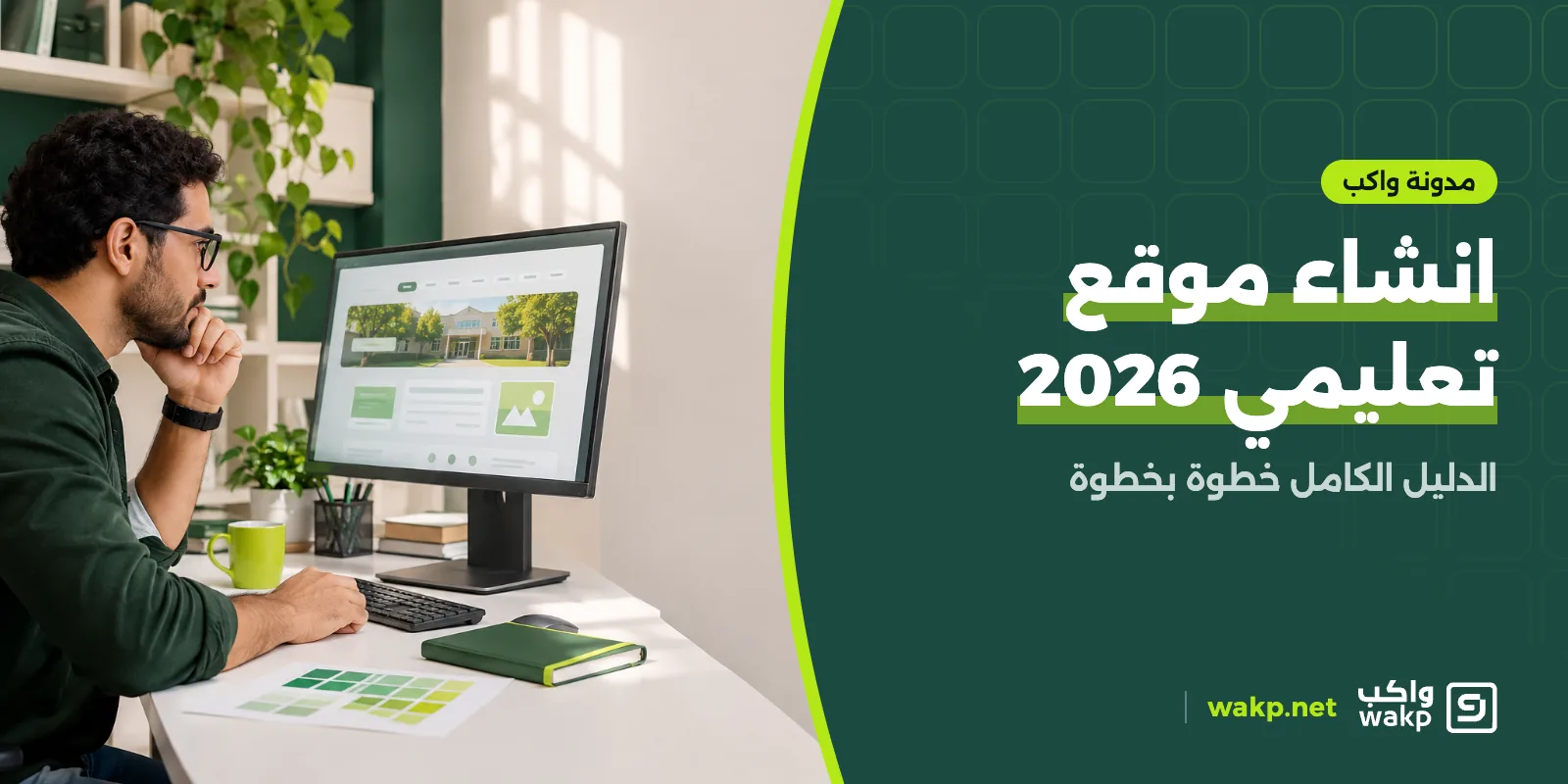
A successful educational website starts with a clear audience and goal, then a suitable platform (an informational site, a learning platform, or both), a simple, fast and accessible design, reliable organised content, search optimisation, and a gradual launch with continuing maintenance. Tools differ depending on whether you are a school, an academy, a teacher or a content provider.
Deciding to create an educational website comes up for schools, academies, teachers and content providers alike, but the answer differs by who you are and what you want. An informational school website differs from a platform teaching hundreds of students, and from a teacher's blog explaining a subject. This guide lays out the whole road: why, how to plan, which platform to build on, how to design, write, optimise, launch and maintain, and then points you to the specialised guides for each case.
What is an educational website?
An educational website is a website whose purpose is education, or introducing an educational organisation and its services. It takes several forms:
| Type | Purpose | Example |
|---|---|---|
| Informational site | Introduce an educational body, contact and applications | A school or institute website |
| Content site | Explain subjects and present lessons to read and watch | A teacher's blog or a curriculum explanation site |
| Learning platform | Accounts, assignments, quizzes and progress tracking | A learning management system for a school or academy |
| Services site | Results lookup, applications, payment | A results or admissions portal |
One project may combine several types: an informational school site with sign-in gateways to a learning platform.
Why do you need an educational website?
- Credible presence: parents and students search for any organisation online before contacting it.
- Available information: dates, news and application conditions are published once instead of repeated on every call.
- Flexible learning: content available at any time.
- Communication: clear channels between the organisation and its users.
- Efficiency: fewer repeated questions and manual tasks.
UNESCO's page on digital education says it supports countries with evidence-based digital learning policies and promotes the ethical, equitable and human-centred use of technology (UNESCO), principles that suit every educational website.
Step 1: Planning and preparation
Planning is the cheapest stage and the most influential. Answer these questions in writing:
- Who is the audience? Students, parents, teachers, trainees? What devices and technical abilities do they have?
- What action is wanted? Apply? Enrol? Watch a lesson? Pay? Get in touch?
- What content exists and what is needed? Who will produce and update it?
- What are the budget and team? Who will run the site after launch?
- How will success be measured? Number of applications, lesson completion rate, or fewer routine calls.
Then sketch the site structure: home page, about pages, services, news, contact and any sign-in gateways. Keep the clicks to the main action few.
Step 2: Choosing the site-building platform
No platform suits everyone. Compare these routes:
| Route | Strengths | Limits | Suits |
|---|---|---|---|
| Self-hosted content management system (such as WordPress) | Flexibility and many extensions | Needs hosting, maintenance, security and updates | Those with a technical team or partner |
| Ready website builders | Speed and ease | Less freedom and dependence on a provider | Simple informational sites |
| Learning management system | Accounts, assignments, quizzes, progress tracking | Not an informational site by origin | Schools and academies managing learning |
| School website inside a school management system | Direct connection to school data, applications and sign-in | Ready sections, not free design | Schools wanting a site connected to their system |
| Custom development | Unique design and features | Highest cost, time and maintenance | Projects with special requirements |
For schools see school website design, for academies see how to create an educational academy, and for wider platforms see creating an educational platform.
Criteria for comparison
- The actual need before extra features.
- Who will maintain the site? Maintenance, updates and security are continuing costs.
- Integration with the organisation's data (students, classes, applications).
- Genuine Arabic and right-to-left support.
- Domain and SSL certificate, and the ability to use the organisation's own domain.
- Freedom to leave: can you move your content if you change provider?
Step 3: Designing the site
Good design helps the visitor accomplish their task; it does not dazzle them with decoration.
- Clarity: a clear headline and a prominent main action (Apply now, Start learning, Contact us).
- Responsive design: it works smoothly on a phone first, since most users browse from one.
- Identity: a consistent logo, colours and fonts, with enough contrast to read.
- Simple navigation: a short menu and logical structure.
- Correct Arabic: right-to-left direction in every element, a readable font and proper number formatting.
- Real photos rather than generic stock where possible, with permission from the people shown.
Accessibility
Make your site usable by the widest range of people. W3C's WCAG sets out principles and conformance levels (A, AA and AAA), and the latest version is WCAG 2.2. Key applications include sufficient contrast, text alternatives for images, keyboard navigation and well-ordered headings.
Step 4: Adding the educational content
Content is the reason a visitor stays. Follow these points:
- Accuracy: check information against reliable sources and attribute quotations.
- Organisation: clear headings and sections, short paragraphs, lists and tables where needed.
- Variety: text, images, video and exercises according to the lesson.
- Currency: periodic review, with the update date shown.
- Direct answers: begin each section with a clear answer, then elaborate.
- Assessment: questions after the lesson so the learner can check understanding.
For more on organising explanations and judging explanation sites, see curriculum explanation websites. If your aim is to deliver explanations inside a system that tracks student progress, see our learning management system guide.
Step 5: Optimising the site for search engines
Search engine optimisation (SEO) is making your pages understandable to search engines and useful to searchers. Google's starter guide (Google Search Central) summarises how Google finds and indexes pages and highlights site organisation, content quality, titles and snippets. In practice:
- Write for what people actually search: use phrases your audience uses naturally, without stuffing.
- A unique title and a clear description for each page.
- Logical internal links leading from one page to related ones.
- Ordered subheadings that reflect the content structure.
- Images with alt text and understandable file names.
- Mobile compatibility and good loading speed.
- Structured data (schema) for the educational organisation where your system supports it.
- A sitemap that helps pages be discovered.
Performance
Google measures page experience with the Core Web Vitals: LCP for how quickly the largest element appears, INP for responsiveness to interaction, and CLS for layout stability (web.dev). Compress images, avoid heavy add-ons and test on an ordinary phone.
Step 6: Launch and maintenance
Before launch:
- Test every main path yourself and with real users (applying, signing in, contacting).
- Review the site on different devices and browsers.
- Check links, forms and the SSL certificate.
- Prepare a privacy policy and contact details.
After launch: update the news, review faults, follow visitors' questions to learn what content is missing, arrange backups, and keep software updated if your platform requires it.
Step 7: Educational tools that add value
Depending on your goal, you may add tools to the site such as:
- A learning management system for assignments, quizzes, progress and certificates, as explained in the e-learning platform for schools.
- Results lookup by seat number, as described in student results lookup.
- Application and registration forms tied to the admissions system.
- A web app for parents, as in the school and parent app.
- Live sessions and recordings.
- Communication and notification tools.
Information architecture: how to organise the pages
Information architecture is arranging pages and categories so visitors find what they want with the least effort. Start with the list of tasks visitors come to accomplish, then group them into main sections, no more than five or six in the menu. A school site example: "About", "Stages and systems", "Admissions", "News", "Contact", plus sign-in buttons. A content site: subjects, then grades, then lessons. Apply the practical rule: can a visitor reach the main action from any page in one or two clicks? Do not bury the most important information on a distant sub-page.
The content types you need
| Content type | Function | What it should include |
|---|---|---|
| Static pages | Introduction and services | A clear headline, short paragraphs, a closing action |
| Lessons and explanations | Learning | Lesson goal, explanation, exercise, update date |
| News and announcements | Proof the site is alive | Date, specific headline, image |
| Forms | Applications, contact, enrolment | Few fields and a confirmation message |
| Downloadable files | Forms and schedules | A clear name and a reasonable size |
| FAQ | Fewer enquiries | Short, direct answers |
Hosting, domain and security
The domain is your site's address; choose a short name that is easy to say and type and that reflects the organisation, and make sure the organisation, not an individual, is the registered owner. Hosting is where the site runs, and its quality depends on speed, availability and backup support. An SSL certificate makes the address start with https and protects data in transit; it is now a practical requirement for any site with forms or sign-in.
Security basics: strong passwords and a separate account for each administrator, permissions only as needed, updating the system and any plugins, regular backups whose restoration you have tested, and not collecting data you do not need. If the site runs inside a managed system, part of these responsibilities moves to the system provider, but responsibility for content and accounts stays with you.
Pre-launch checklist
- [ ] The goal and audience are written down and approved.
- [ ] Every page has a unique title and a clear description.
- [ ] The site works well on a phone and in at least two browsers.
- [ ] Contrast, alt text and keyboard navigation have been checked against WCAG.
- [ ] Images are compressed and loading speed is acceptable on an ordinary phone.
- [ ] The SSL certificate works and all links and forms have been tested.
- [ ] Contact details and the map are correct.
- [ ] A backup is ready and the person with update permission is known.
- [ ] A privacy policy is published.
A simple project timeline
We do not quote fixed durations because they depend on project size, but the order of work is usually the same:
- Definition: audience, goal, structure and platform.
- Preparation: logo, texts, photos and a content plan.
- Build: set up the platform, design and enter content.
- Testing: paths, devices, performance and accessibility.
- Gradual launch: a limited group first, then everyone.
- Improvement: review use periodically and update content.
What delays projects most is content and pending decisions, not technology, so prepare texts and photos early and decide who has approval authority.
A simple measure of success
Choose three indicators tied to your goal and review them monthly: one for reach (visits to key pages), one for action (applications, enrolments or completed lessons) and one for quality (repeated questions that still reach you by phone). If the same questions keep recurring, it is a sign the site's content is incomplete.
Common mistakes when creating an educational website
- Starting with design before defining audience and goal.
- Outdated or unreviewed content.
- A slow site, or one not compatible with phones.
- Ignoring accessibility.
- Stuffing keywords instead of writing usefully.
- A site disconnected from the organisation's data, needing repeated manual entry.
- Launching with no maintenance afterwards.
How wakp helps
wakp offers educational bodies what serves more than one kind of site:
- The public school website: with the school's identity and domain, built from ready sections (about, news, photos, map, contact), showing stages and systems from the academic settings, with an Apply Now button, sign-in buttons for administration, teachers, parents and students, a public payment page and basic search optimisation. For details see school website design.
- Online learning (LMS): lessons, assignments, quizzes, live sessions, progress tracking and certificates, running standalone or with the administrative system, and serving schools, academies, training centres and institutes.
- An installable web app (PWA) with notifications for parents, students and teachers. MDN describes a progressive web app as an app built with web technologies that can be installed on the device (MDN).
- A link between all of this and the school's own data, so there is no duplicate entry.
wakp does not offer a marketplace for selling individual teachers' courses, nor apps in app stores; the app is a web app. To find what suits your organisation, book a demo meeting.
All of this comes together in wakp's school management system, whose modules are listed in school management system features.
Which guide to read next?
| Your situation | Guide |
|---|---|
| A school wanting a site with its identity | School website design |
| Thinking of an academy | How to create an educational academy |
| Want to judge explanation sites | Curriculum explanation websites |
| Want a complete learning platform | Creating an educational platform |
| Interested in a learning management system | Learning management system |
| Need results lookup | Student results lookup |
| Need an app for parents | School and parent app |
Frequently asked questions
How do I start creating an educational website?
Start by defining who the site serves and what they should do on it, then write the page structure and content, choose the most suitable platform, design the interface, publish useful content, optimise for search, and launch and review performance.
What is the difference between an educational website and an educational platform?
An educational website introduces an organisation or offers content to read and watch, while an educational platform (a learning management system) adds accounts, assignments, quizzes and progress tracking. An institution may need both.
What is the best platform for building an educational website?
No single platform is best. A school that wants an informational site tied to its system differs from a teacher who wants a blog, and from an academy that needs a learning system. Define your need, then compare options against the criteria in this guide.
How much does it cost to create an educational website?
Cost depends on the type of site, number of pages, features, design, hosting, domain and maintenance. A general figure cannot be relied on; ask for a detailed offer with a written scope.
How do I make an educational website appear in search results?
With useful content that answers searchers' questions, clear titles and descriptions, organised link structure, speed and mobile compatibility, and without stuffing keywords. These are the foundations Google's starter guide recommends.
Can an educational website become an app?
Yes. The site can be designed as a progressive web app (PWA) that installs from the browser and supports notifications, with no app-store requirement.
How to create an educational website
- Define the goal and audience Write who will use the site and what action you want from it.
- Plan the structure and content Sketch the main pages, the visitor's path and the content list.
- Choose the platform Compare a ready system, a site builder, a learning platform and custom development.
- Design the site Adopt a simple responsive design with a clear identity that supports Arabic and accessibility.
- Add the educational content Publish accurate, organised content and update it regularly.
- Optimise for search and performance Take care of titles, descriptions, loading speed and mobile compatibility.
- Launch and monitor Launch gradually, track use, fix and improve.
Sources
Update log
- — Full rewrite and expansion into the pillar guide of the educational website cluster
- — Improved internal links